Free timesheet templates: weekly, biweekly and monthly (printable PDF)
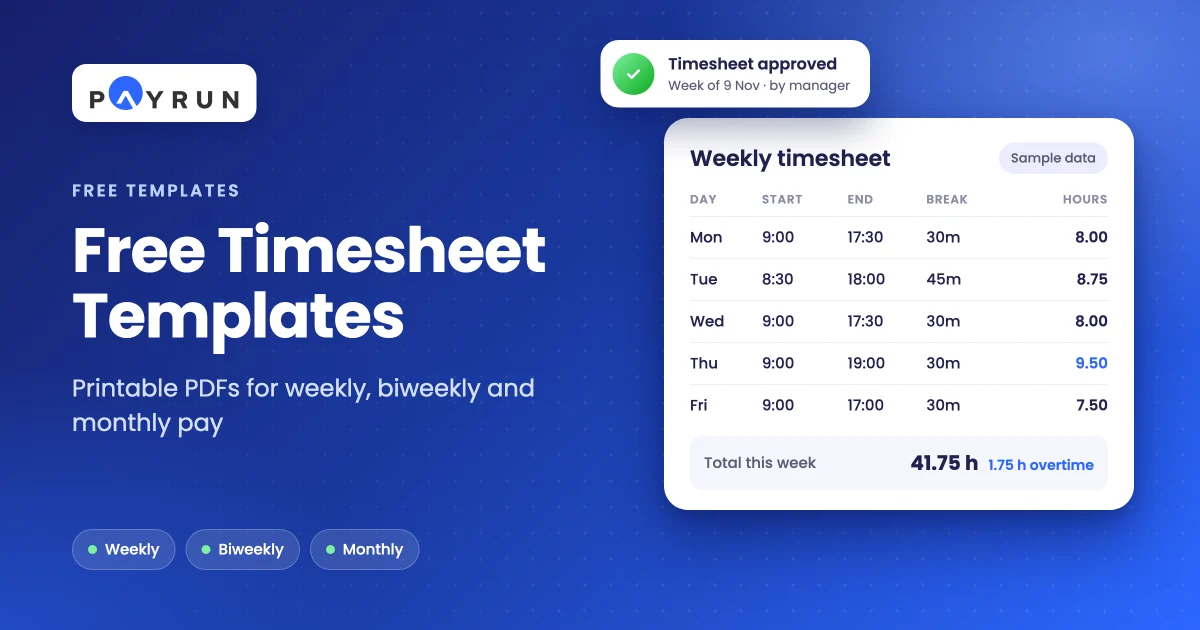
Table of Contents
Most small teams start tracking hours in a spreadsheet, and the spreadsheet breaks in the same three places: a missed lunch break, overtime added up across the wrong week, and nobody sure which version the manager signed.
These free timesheet templates do the arithmetic for you. Pick weekly, biweekly or monthly, type each day's start and end times, and the hours, overtime and pay fill themselves in.
Quick overview
A timesheet template is a ready-made sheet where an employee records start time, end time and unpaid breaks for each day, so hours worked and overtime are easy to add up. Below are three free printable PDF templates (weekly, biweekly and monthly) with break, overtime and sign-off fields, plus the formula to total hours in a spreadsheet. Payrun HR software (payrun.app) does the same job with a timer, approvals and monthly summaries.
Rules last checked on 9 November 2026 against the US Department of Labor and GOV.UK.
Key takeaways
- Pick the template that matches your pay period: weekly, biweekly or monthly.
- Record start time, end time and unpaid break for every day. Hours worked = end minus start minus the unpaid break.
- In the US, non-exempt employees earn overtime at 1.5 times their regular rate after 40 hours in a workweek, and hours can't be averaged across two weeks.
- In the UK there's no legal overtime premium. Workers on a shift of more than 6 hours get a 20-minute break, and average pay must stay above the National Minimum Wage.
- Keep signed timesheets. US employers must keep time cards for at least 2 years.
- Move to time-tracking software when approvals, chasing missing sheets or copying hours into payroll start to take longer than the work itself.
This guide covers the three templates, how to fill one in, how to calculate hours and overtime, the US and UK rules, how long to keep timesheets, and when to switch to software.

Which timesheet template should you use?
Use the template that matches how often you pay people. A weekly timesheet suits weekly payroll and hourly staff, a biweekly one suits pay every two weeks, and a monthly one suits salaried teams who mainly need to track leave and the odd long week. All three are free printable PDFs with no sign-up.
Template | Best for | What it covers | Download |
|---|---|---|---|
Weekly timesheet | Hourly staff and weekly payroll | Daily hours, weekly total, regular, overtime and leave hours | |
Biweekly timesheet | Teams paid every two weeks | 14 days, with separate totals and overtime for week 1 and week 2 | |
Monthly timesheet | Monthly payroll, salaried teams, leave tracking | Every day of the month, leave hours and type, weekly and monthly totals |
Each PDF fits on one page. It has a header for the employee, manager and period, a row for every day with start, end, unpaid break and hours worked, a totals row (the biweekly sheet totals week 1 and week 2 separately), and space for the employee's signature and the manager's approval.
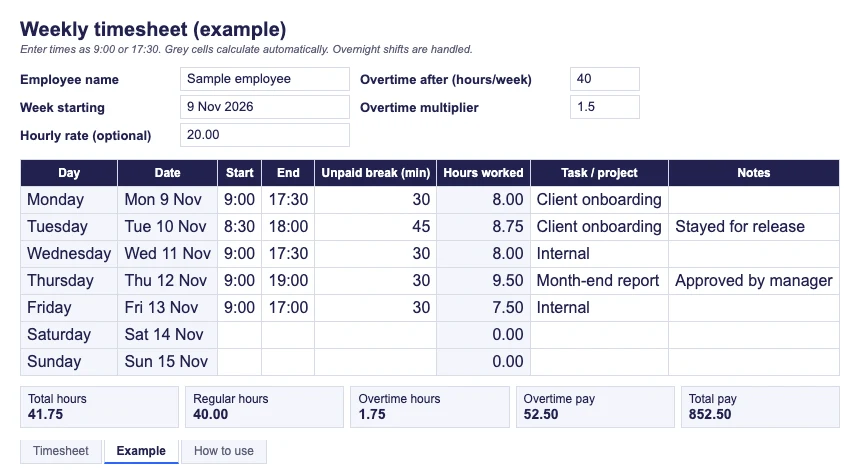
Prefer a spreadsheet? Copy the same columns into Excel or Google Sheets and use the hours formula in the calculation section below. It handles overnight shifts, such as 22:00 to 06:00.
What should a timesheet include?
A timesheet needs enough detail to pay someone correctly and to show later how you got the number. In practice that means these fields:
- Employee details: name, employee ID and manager.
- Pay period: the week, two weeks or month the sheet covers.
- Each day's times: date, start time and end time.
- Unpaid breaks: in minutes, so they come off the total.
- Hours worked: per day and in total.
- Overtime: hours above your threshold, worked out per week.
- Leave: hours of paid or unpaid leave, with the type.
- Task or project: useful if you bill clients or track billable and non-billable hours.
- Sign-off: employee signature, manager approval and dates.
US employers have to record the hours worked each day and the total hours each workweek for non-exempt employees, so the daily rows aren't optional there.
How do you fill in a timesheet template?
Filling in a template takes a couple of minutes a week if you do it daily rather than from memory on Friday.
- Download the PDF and print one copy for each employee and pay period.
- Fill in the employee details, the period and the date on each row.
- Check which overtime rule applies. The sheet notes the US federal rule (over 40 hours in a workweek at 1.5 times pay), but your contracts or local law may differ.
- Each day, write the start time, end time and unpaid break in minutes. Use the 24-hour clock, such as 17:30.
- Add the task or project and any notes, such as a late finish the manager agreed.
- At the end of the period, add up the hours, split regular and overtime hours for each week, then the employee signs, the manager approves, and the totals go to payroll.
If you'd like a refresher on the wider process, see our guide to tracking employee hours.
How do you calculate hours worked on a timesheet?
Hours worked are the end time minus the start time, minus any unpaid break. For example, 8:30 to 18:00 is 9.5 hours on the clock. Take off a 45-minute unpaid lunch and the employee worked 8.75 hours.
If you total hours in a spreadsheet, use this formula. It also handles shifts that end after midnight:
=MOD(End - Start, 1) * 24 - Break minutes / 60
Payroll needs decimal hours, not hours and minutes. 8 hours 45 minutes is 8.75 hours, not 8.45. Divide the minutes by 60 to convert them:
Minutes | Decimal hours |
|---|---|
15 minutes | 0.25 |
20 minutes | 0.33 |
30 minutes | 0.50 |
45 minutes | 0.75 |
If you round times, apply the same rule to every employee, and don't only round in the employer's favour.
How is overtime calculated on a timesheet (US and UK)?
In the US, non-exempt employees must be paid at least 1.5 times their regular rate for every hour over 40 in a workweek. The rule applies week by week: hours can't be averaged across two or more weeks. In the UK, there's no legal right to an overtime premium. The employment contract sets the rate.
Rule | United States (federal FLSA) | United Kingdom |
|---|---|---|
Overtime pay | At least 1.5 times the regular rate after 40 hours in a workweek, for non-exempt employees | No legal premium. The contract sets the rate, and average pay for all hours worked must not fall below the National Minimum Wage |
How hours are counted | Per fixed 7-day workweek. No averaging across weeks | The 48-hour weekly limit is averaged, normally over 17 weeks, unless the worker opts out |
Breaks | No federal rule on meal breaks. Some states have their own | One 20-minute rest break if the working day is more than 6 hours, and 11 hours' rest between working days |
This is why the biweekly template splits the period into two weeks. An employee who works 45 hours in week 1 and 35 in week 2 has worked 80 hours, the same as two normal weeks, but in the US they're still owed 5 hours of overtime for week 1. The monthly template does the same with a weekly breakdown. If a workweek runs into the next month, add that week's hours from both months before you decide on overtime.
Sources: US Department of Labor, Fact Sheet #23, GOV.UK: Overtime, your rights, GOV.UK: Rest breaks at work and GOV.UK: Maximum weekly working hours. State and local rules can be stricter, so treat this as a guide, not legal advice.
How long should you keep timesheets?
In the US, keep time cards for at least 2 years and payroll records for at least 3 years, under the Fair Labor Standards Act (DOL Fact Sheet #21). In the UK, keep PAYE payroll records for 3 years from the end of the tax year they relate to, and keep enough working-time records to show you meet the weekly limits.
Store signed timesheets in one place, named by employee and period, so you can answer a question about a past pay run in minutes. Our guide to time tracking compliance covers the record-keeping side in more detail.
When should you stop using a timesheet template?
A template works well for a handful of people with one approver. It starts to cost more time than it saves when you see these signs:
- You chase missing or unsigned timesheets every pay period.
- Several managers approve hours, and versions get emailed back and forth.
- Overtime surprises turn up after payroll has run.
- Someone re-types totals from each sheet into payroll by hand.
- You need to know who's working, who's on leave and who's over their hours today, not at month end.
At that point a timesheet app pays for itself. We compare the options in our list of timesheet apps for employees.
How Payrun handles timesheets
In Payrun, time lives in the Timeline module, which has three views: Calendar, Timesheet and Monthly Summary. The Timesheet view shows each employee's scheduled hours, logged hours and balance for the day, and flags entries that run unusually long.
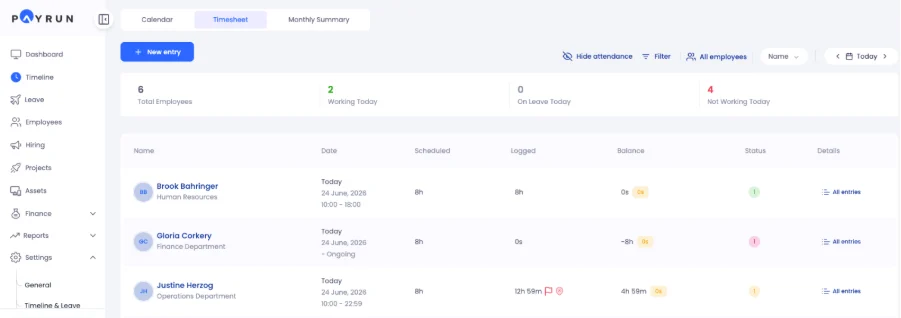
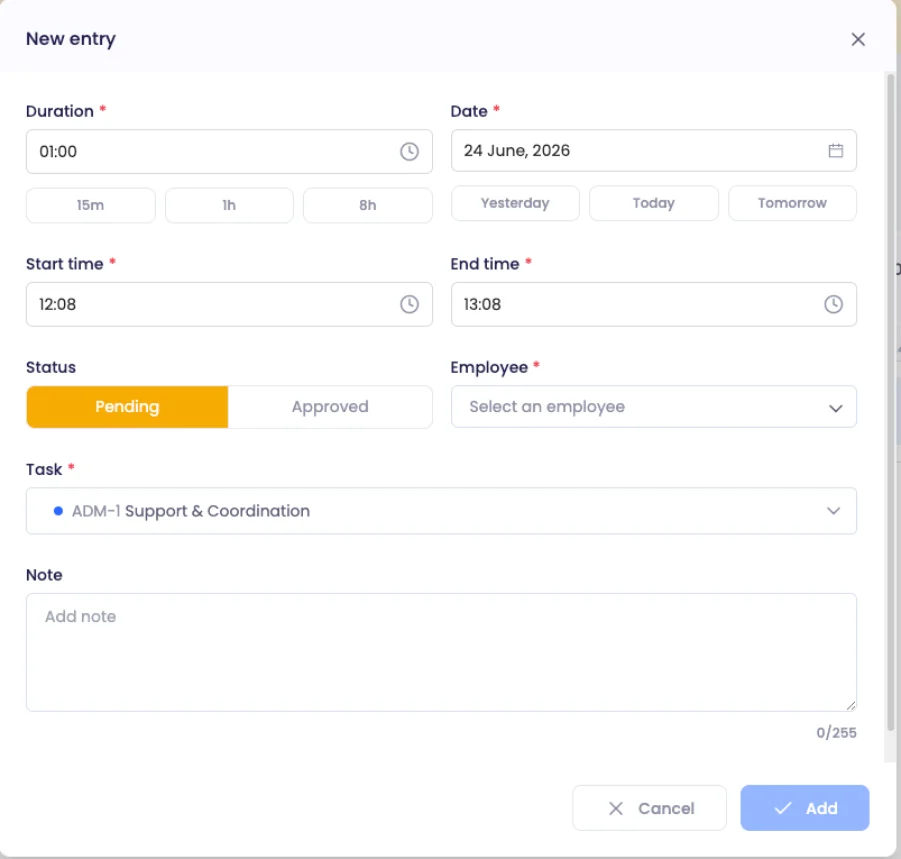
Employees log time with a timer or a manual entry: duration, date, start and end time, task and a note. Each entry is Pending or Approved. Managers can approve time entries on every plan. On Pro and Ultimate, admins can also approve timer or manual entries automatically. Admins can set a threshold that flags, or stops, a time log that runs well past the employee's workshift.
The Monthly Summary replaces the monthly template. For every employee and day it shows scheduled hours (S), leave (L), paid leave (PL) and the balance (B). A negative balance points to missing hours, and a positive one to extra time or overtime, so you can sort both out before payroll.
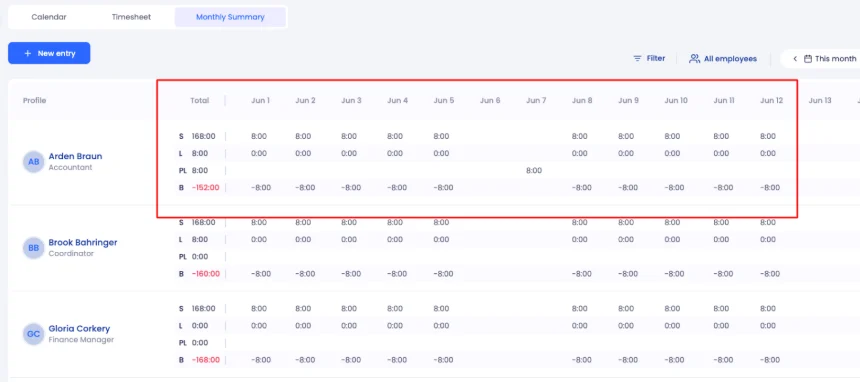
Leave is tracked in the same place, so a day of annual leave shows up in the monthly totals without a second spreadsheet. On the Pro and Ultimate plans, the payroll run flags pending time logs and leave before you calculate pay. See the timeline and productivity tracking page for the full feature list.
Leave and attendance, including attendance approval, are included on every Payrun plan, including Free for up to 5 users. Automated attendance approval is available on Pro and Ultimate. Paid plans start at $4.95 per user per month billed annually ($8.25 billed monthly). The 14-day free trial covers up to 10 users, with no card and no contract.